MyQ App Not Working (Stuck Loading / Blank Screen): Fixes That Actually Work
MyQ App Not Working: When the MyQ app is stuck on loading, keeps spinning, won’t sign in, or shows a blank screen, it’s easy to assume your garage door opener is the problem. In reality, this is usually an app + phone + network issue—especially if your garage door still opens and closes normally with the remote or wall button.
This guide is a practical checklist to get the app working again without wasting time.
Note: This post is about the phone app. You’re not touching any garage door hardware.
Quick answer: why the MyQ app stops working
Most “blank screen / stuck loading” problems happen because the app can’t properly talk to MyQ servers. The most common reasons are a temporary outage, a corrupted app cache/session, VPN or ad-blocking DNS, missing permissions, or an outdated app version that doesn’t play nicely with your phone’s current OS version.
So the strategy is simple: confirm it isn’t an outage, then reset the app’s connection step-by-step.
Step 1: Check if it’s an outage (fastest way to avoid wasting time)
Before you change settings, try two quick checks: first, switch your phone from Wi‑Fi to mobile data (or the other way around) and see if the app behaves differently. Second, try logging in from another device if you have one (a family member’s phone or a tablet).
If MyQ fails on multiple devices and networks at the same time, it’s likely a service-side issue. In that case, your best move is to wait a bit and avoid doing major resets.
Step 2: Force close the app and reopen it (simple but important)
A lot of stuck-loading issues are just a “frozen session.”
On iPhone, swipe up and fully close the app, then reopen. On Android, open recent apps and swipe it away. Don’t just go back to the home screen—actually close it.
Step 3: Toggle airplane mode (quick network reset)
If your phone’s network stack is stuck, the app may never connect properly.
Turn on airplane mode for 10 seconds, then turn it off and reopen MyQ. This refreshes Wi‑Fi/cellular routing without rebooting your phone.
Step 4: Turn off VPN / ad blocker / private DNS (very common cause)
If you use a VPN app, “Private DNS,” or an ad-blocking setup, MyQ may load on mobile data but fail on Wi‑Fi (or fail everywhere if VPN is always on).
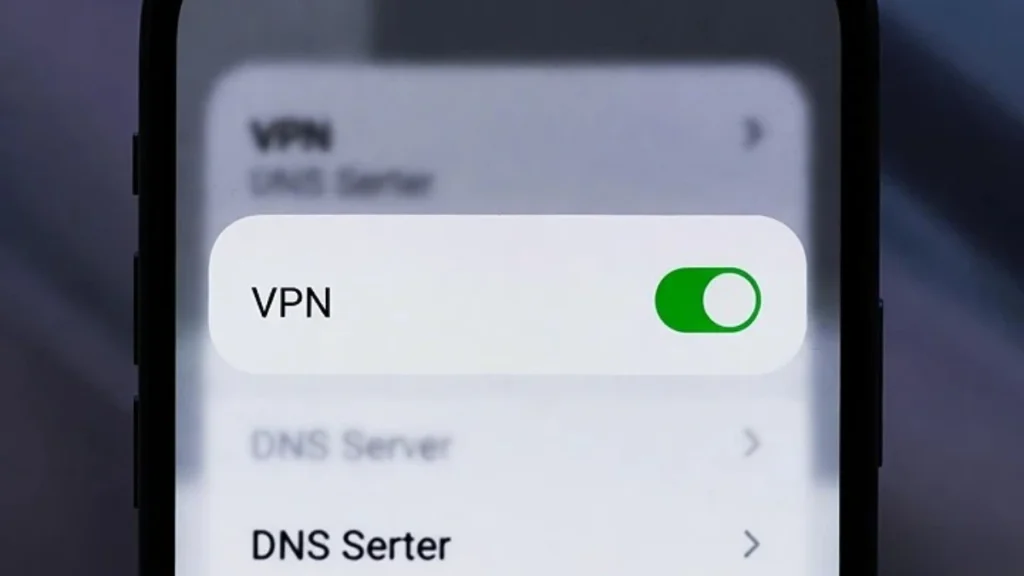
Temporarily disable:
- VPN (phone-level VPN apps)
- Private DNS / “DNS over HTTPS” settings (if you enabled them)
- ad-blocking DNS profiles (AdGuard/NextDNS/Pi-hole-like setups)
Then try MyQ again. If it suddenly works, you’ve found the cause. You can keep your privacy tools later, but you may need to whitelist MyQ services.
(You already have a related post: “MyQ works on mobile data but not on Wi‑Fi” — great internal link here.)
Step 5: Update the app (and your phone) if you’re behind
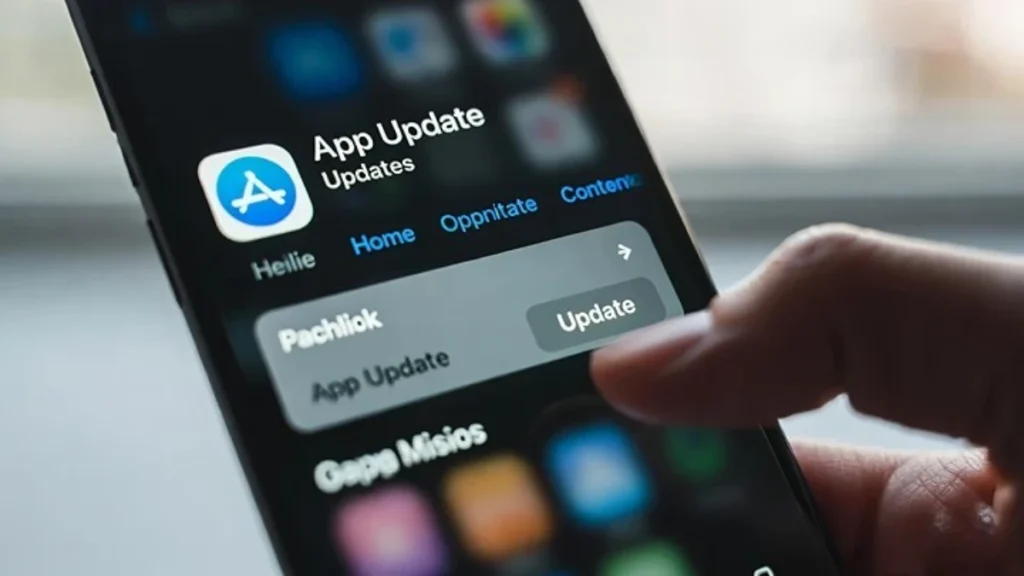
MyQ app issues spike when an older app version meets a newer iOS/Android update.
Open the App Store / Play Store and update MyQ. If your phone OS update is pending, install it as well—then reboot the phone once and test again.
Step 6: Clear cache (Android) / Offload app (iPhone) and try again
This step fixes “blank screen” problems surprisingly often.
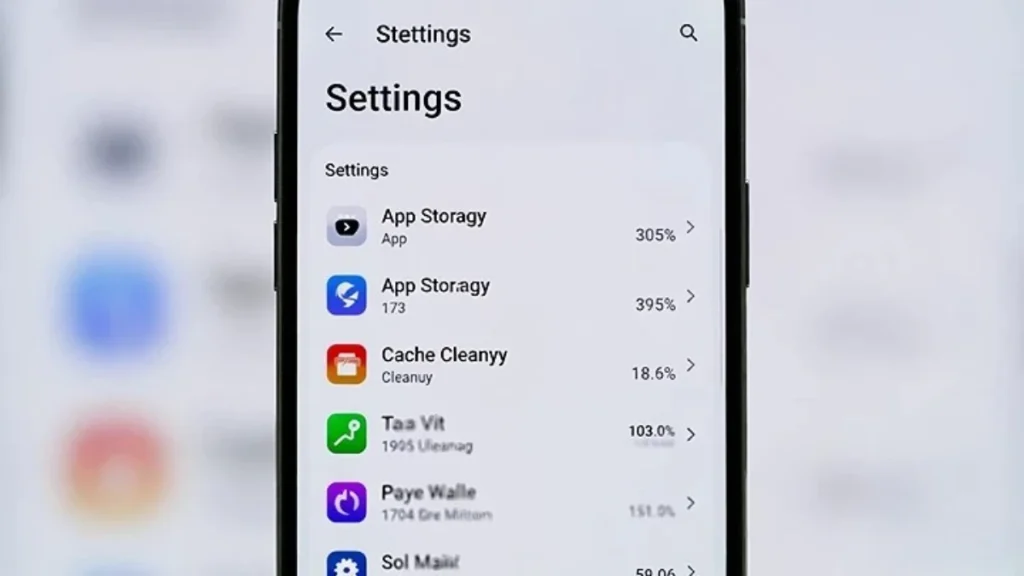
Android: Settings → Apps → MyQ → Storage → Clear Cache (and, if needed, Clear Data).
iPhone: Settings → General → iPhone Storage → MyQ → Offload App (or delete and reinstall).
After doing this, open the app and sign in again.
Step 7: Check permissions that can break loading or device discovery
MyQ doesn’t need every permission, but certain phone restrictions can cause weird behavior.
On iPhone, check that Background App Refresh is allowed for MyQ and that Cellular Data is enabled for the app (if you use mobile data). On Android, make sure the app isn’t restricted from using background data and that it can use the network.
If your phone is in extreme battery saver mode, disable it temporarily and test.
Step 8: Log out and log back in (refresh the session)
If the app loads but devices won’t appear or it keeps spinning after login, logging out can fix a corrupted session token.
Log out inside the app if possible. If the app won’t load enough to log out, reinstalling (Step 6) effectively does the same thing.
Step 9: Reinstall as a clean fix (best “last step”)
If nothing else worked, uninstall MyQ completely and reinstall it fresh. This clears broken cache, settings, and bad sessions all at once.
After reinstalling:
- sign in slowly
- allow any network permissions prompts
- test on Wi‑Fi first, then mobile data
If it works immediately after reinstall, your issue was almost certainly app-side.
If the app works but your device shows offline
Sometimes the app loads fine, but your opener shows “offline.” That’s a different issue—usually Wi‑Fi signal/router stability.
Use these related guides (internal links):
- MyQ Garage Door Opener Shows Offline: Reasons and Fixes That Work
- MyQ Keeps Disconnecting From Wi‑Fi: Causes and Stable Fixes
- MyQ Not Connecting to Wi‑Fi (2.4GHz): Step-by-Step Troubleshooting
FAQs
Why is the MyQ app stuck on loading?
Most often because the app can’t reach MyQ servers due to VPN/ad-blocking DNS, a temporary outage, or a corrupted app cache/session.
My garage door still works with the remote—so what’s broken?
Usually nothing mechanical. The door works locally; the app needs an internet connection and a stable account session.
Does reinstalling actually help?
Yes. For blank screens and endless loading, reinstalling is one of the most reliable fixes because it resets everything cleanly.