MyQ Garage Door Opener Shows Offline? 9 Fixes That Work
When your MyQ garage door opener shows “Offline” in the app, you may lose the ability to check your door status or control it remotely. The good news is that an offline message does not automatically mean your garage door opener is broken.
In many cases, the problem comes from a temporary internet interruption, weak Wi-Fi coverage, a router change, or a connection issue between the MyQ device and its servers.
This guide explains how to identify the likely cause, troubleshoot the connection in the right order, and reconnect your device without unnecessarily resetting everything.
Quick answer: Check whether your home internet is working, verify that the MyQ device has power, restart your router, and check the Wi-Fi signal inside the garage. If the device remains offline, use the MyQ app’s device-specific reconnect instructions.
Why Does MyQ Garage Door Opener Show Offline?
The most common causes include:
- A temporary internet or router interruption.
- Weak Wi-Fi coverage where the opener or hub is installed.
- A changed Wi-Fi password, network name, or router.
- Incorrect or incompatible router settings.
- A powered-off or disconnected MyQ hub.
- A MyQ app or account communication problem.
- A device that needs to reconnect to the Wi-Fi network.
Before changing any settings, determine whether the problem affects the app, the internet connection, or the garage door hardware itself.
1. Check Whether Your Garage Door Still Works
First, try operating the garage door using its normal wall control or handheld remote, provided the door and its safety features appear to be functioning normally.
If the door works locally but the MyQ app shows Offline, the problem may be limited to the smart connection.
If the door does not operate locally either, do not assume Wi-Fi is the only issue. Check for a power problem or a separate mechanical or safety fault.
Never bypass the safety sensors or attempt to adjust springs and cables to solve an app connection problem.
2. Check Your Home Internet Connection
MyQ needs an internet connection to communicate with its app and online services.
Try these checks:
- Connect your phone to your home Wi-Fi.
- Open a few websites or other internet-connected apps.
- Check whether other devices in your home can access the internet.
- If the internet is down, contact your internet provider or wait for the service to recover.
You can also switch your phone to mobile data and open the MyQ app. This helps you test whether your phone’s Wi-Fi connection is contributing to the problem, although it does not prove that the opener itself is online.
If your home internet is working normally, continue to the next step.
3. Restart Your Router and MyQ Device
A restart can resolve temporary connection problems.
Follow this order:
- Close the MyQ app.
- Restart your modem and router according to their manufacturers’ instructions.
- Wait until your home internet is fully restored.
- If safe and appropriate for your model, power-cycle the MyQ opener or hub according to its manual.
- Wait a few minutes for the device to reconnect.
- Open the app and check its status.
If your opener has a battery backup, follow the manufacturer’s specific power-disconnection instructions. Do not pull down on the emergency release or touch internal electrical components just to troubleshoot Wi-Fi.
If the device comes back online, test the app again after a short interval to see whether the connection remains stable.
4. Check Wi-Fi Signal Strength Inside the Garage
A router can provide good coverage in your living room while delivering a weak signal near the garage door opener.
This can happen because of distance, thick walls, metal surfaces, or interference from nearby devices.
Try the following:
- Check your phone’s Wi-Fi signal while standing near the opener.
- Move the router closer to the garage if practical.
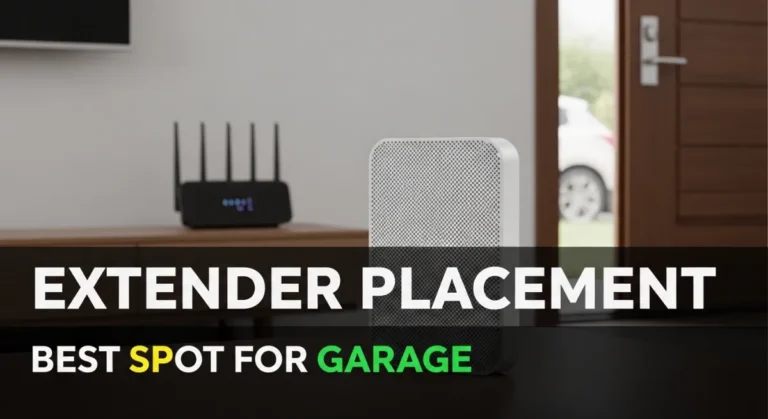
- Place a compatible mesh node or Wi-Fi extender where it receives a good signal from the main router.
- Keep the network equipment away from large metal objects and avoid enclosing it in a metal cabinet.
A phone’s signal strength is only a rough indication; the opener may have a different antenna and connection quality.
For more detailed guidance, read our related article: MyQ Not Connecting to Wi-Fi (2.4GHz): Step-by-Step Troubleshooting.
5. Check Your Wi-Fi Band and Router Settings
Many MyQ Wi-Fi garage door opener models require a compatible 2.4 GHz Wi-Fi connection. Requirements can vary by device, so check your model’s official documentation.
If your router combines 2.4 GHz and 5 GHz under one network name, band selection or setup problems may occur.
Check these items:
- Confirm that your device supports your current Wi-Fi configuration.
- Verify that the network name and password have not changed.
- Check whether guest-network isolation or access restrictions are preventing the device from reaching the internet.
- Review your router’s security settings against the manufacturer’s recommendations.
Avoid changing several advanced settings at once. Make one change, test the connection, and record the original setting so you can restore it if necessary.
Do not disable your router’s security or firewall entirely just to get MyQ online.
6. Reconnect MyQ After Changing Your Router or Password
Did MyQ start showing Offline after you installed a new router, changed your Wi-Fi password, or switched internet providers?
Your device may still be trying to use the old network credentials.
For many supported devices, the MyQ app provides an option to update Wi-Fi settings:
- Open the MyQ app.
- Select the offline device.
- Look for an option such as Reconnect your device or Update Wi-Fi Settings.
- Follow the instructions shown for your specific model.
- Enter the correct Wi-Fi details when prompted.
- Wait for the app to confirm that the device is connected.
For a separate Smart Garage Hub, the reconnect process may be different from that of an opener with built-in Wi-Fi.
Use the instructions for your exact device. Do not repeatedly press Learn or Reset buttons based on instructions for another model.
7. Check Whether the MyQ App Is the Problem
Sometimes the opener has power and internet access, but the app does not display the correct status.
Try these steps:
- Force-close the MyQ app and reopen it.
- Check for an available app update.
- Restart your phone.
- Confirm that you are signed into the correct MyQ account.
- Temporarily test the app using mobile data instead of Wi-Fi.
If the app is stuck loading, blank, or unable to sign in, follow our separate guide: MyQ App Not Working (Stuck Loading / Blank Screen): Fixes That Actually Work.
This distinction matters because an app-loading problem and an offline garage door device can have different causes.
8. Check the Device’s Indicator Lights
If your opener or hub has status lights, observe their color and flashing pattern.
These indicators can help identify where the connection is failing, but their meanings vary by model.
For example, certain built-in Wi-Fi openers use different LED patterns to indicate whether the device is ready for setup, connecting to the router, or communicating with MyQ services.
Check the troubleshooting instructions for your exact model rather than assuming one LED pattern means the same thing on every device.
If the app displays an error code, write it down before making further changes. The code may help you identify the specific issue.
9. Remove and Re-Add the Device Only as a Last Resort
If the internet is working, the device has power, and the recommended reconnect procedure fails, you may need additional device-specific troubleshooting.
Before removing a device or performing a factory reset:
- Confirm that you have access to the correct MyQ account.
- Check the official instructions for your exact model.
- Understand whether the reset will erase saved network settings or device configuration.
- Make sure you can complete the setup process again.
Do not remove the device or reset it repeatedly without a clear reason. If it remains offline after the documented steps, contact MyQ or the device manufacturer with your model number, LED pattern, and any error code.
What If MyQ Keeps Going Offline?
If your device reconnects but repeatedly returns to Offline, focus on the pattern rather than repeating the same reset.
If it happens when the garage door is closed: Check Wi-Fi coverage near the opener and whether the door or surrounding structures affect the signal.
If it happens after a router change: Review the new network name, password, supported Wi-Fi band, and router configuration.
If it happens throughout the day: Check for unstable internet service, weak wireless coverage, or recurring router interruptions.
If the app is the only thing showing a problem: Test the app on another phone or connection, and check for app or account issues.
For repeated connection drops, see our related guide on MyQ Not Connecting to Wi-Fi (2.4GHz): Step-by-Step Troubleshooting.
Frequently Asked Questions
Why does MyQ say Offline when my garage door still works?
The wall control and handheld remote can operate the opener locally, while the MyQ app relies on an internet connection. The door may continue working even when the smart connection is unavailable.
Will restarting my router fix MyQ Offline?
It can fix temporary network problems. If the issue comes from weak Wi-Fi coverage, changed network credentials, or incompatible settings, you may need to address that underlying cause.
Does MyQ need 2.4 GHz Wi-Fi?
Many MyQ Wi-Fi garage door opener models require 2.4 GHz Wi-Fi. Check your exact model’s specifications and official setup instructions before changing your router settings.
Why does MyQ reconnect and then go offline again?
Repeated disconnections can indicate weak signal strength, network instability, or a router configuration issue. Observe when the problem occurs and test the Wi-Fi connection near the device.
Should I factory-reset my garage door opener?
Not as a first step. Try basic connection checks and the model-specific reconnect process first. A reset may erase saved settings and create additional setup work.
Is an offline MyQ message a mechanical garage door problem?
Not necessarily. An offline message generally concerns smart connectivity. If the door itself behaves abnormally or fails to operate locally, investigate that separate problem safely.
Final Thoughts
When your MyQ garage door opener shows Offline, start with the basics: check your internet, confirm the device has power, restart the network equipment, and assess Wi-Fi coverage in the garage.
If the device remains offline, follow the reconnect procedure for your specific opener or hub. Avoid unnecessary factory resets and never bypass garage door safety features.
If these checks do not resolve the issue, contact the manufacturer with your model details, indicator-light pattern, and any error message. That information can help narrow down the cause without unnecessary trial and error.