MyQ Keeps Disconnecting From Wi‑Fi: Causes and Stable Fixes (Stop Going Offline)
MyQ Keeps Disconnecting From Wi‑Fi: If your MyQ connects to Wi‑Fi but keeps dropping offline later, it’s almost always a stability issue—not a one-time setup mistake. In most homes the root cause is weak signal in the garage, router settings that confuse smart devices, or interference (especially when the garage door is closed).
This guide focuses on fixes that actually stick, so you’re not reconnecting MyQ every few days.
Safety note: This is Wi‑Fi/app troubleshooting only. If you unplug the opener, do it safely. Avoid touching springs/cables (not part of this fix).
Quick answer: why MyQ keeps going offline
MyQ usually disconnects repeatedly because one of these is happening:
Your Wi‑Fi signal at the garage is borderline, so the opener drops when the signal gets weaker (door closed, weather, peak usage). Or your router is using band steering/combined SSIDs that cause devices to hop between 2.4GHz and 5GHz in a way MyQ doesn’t handle well. Security settings like WPA3-only can also cause unstable behavior even if the device connects once.
So the goal is simple: give MyQ a stable 2.4GHz network and a strong signal where the opener is.
Step 1: Confirm the pattern (this tells you the real cause)
Before changing settings, notice when it disconnects:
If it goes offline mostly when the garage door is closed, signal blocking is a big clue (metal door = weaker Wi‑Fi). If it goes offline around the same time every day, it could be router channel switching, scheduled reboots, or peak congestion. If it started after you changed ISP/router, it’s usually a new router setting (WPA3-only, combined SSID, guest network).
Write down the pattern once—this saves a lot of time.
Step 2: Lock MyQ onto a true 2.4GHz Wi‑Fi network
For stability, 2.4GHz is usually best for smart devices in garages.
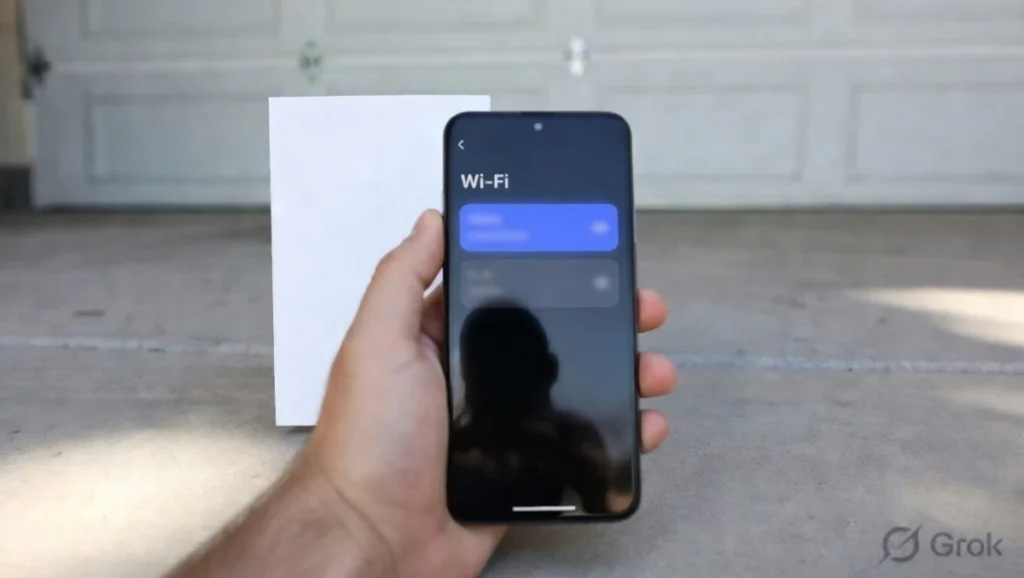
If your router uses one Wi‑Fi name for both bands, create a separate 2.4GHz SSID such as HomeWiFi-2G and connect MyQ to that. This reduces band-steering “confusion” and stops many random disconnects.
If you can’t create separate SSIDs, look in your router settings for options like “Smart Connect” or “Band Steering” and disable it temporarily as a test (names vary by router).
Step 3: Improve Wi‑Fi signal where the opener is (the #1 long-term fix)
If MyQ is far from the router, small signal changes can push it offline.
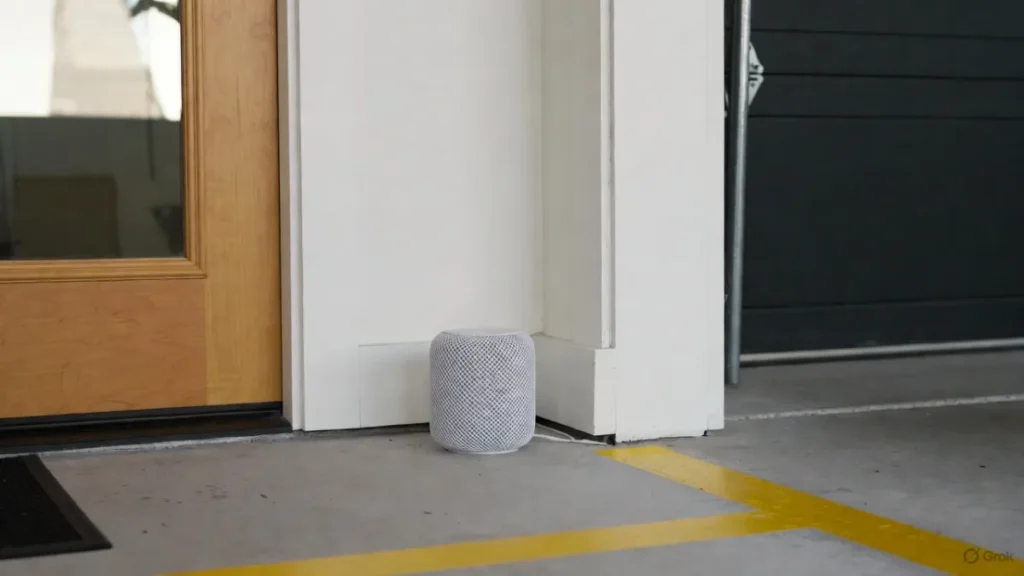
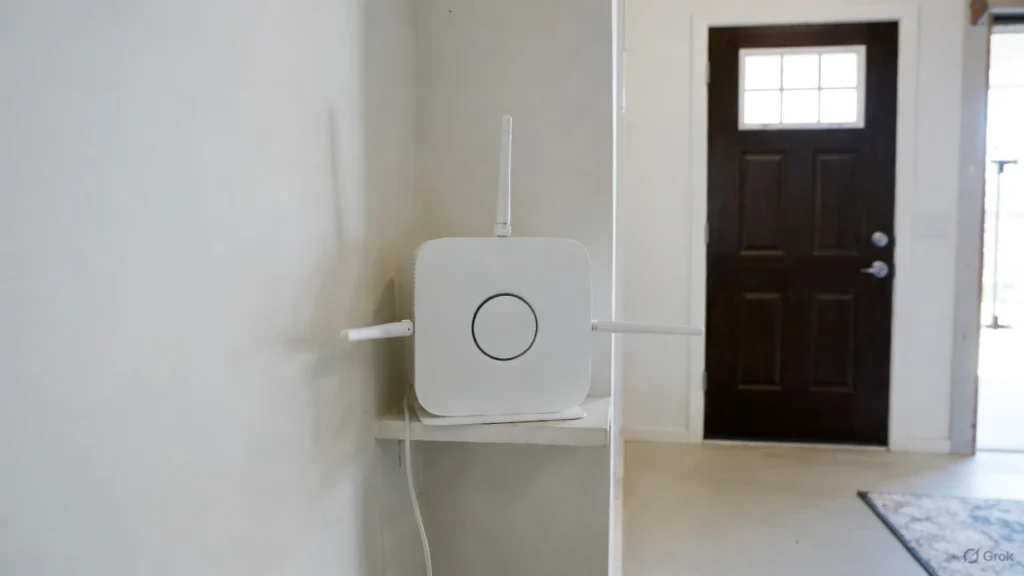
The most reliable fix is to place a mesh node or extender so the opener has a strong signal. The trick is placement: the extender should be close enough to the garage to help, but not so far from the main router that it has a weak connection itself.
A good practical approach is to put the node just inside the house near the garage wall, not deep inside the garage behind metal objects.
Step 4: Avoid Guest Wi‑Fi and “isolation” networks
Guest networks often have restrictions that smart devices hate. Even if MyQ connects, it may be unstable or blocked from reaching what it needs.
Make sure MyQ is on your main home network, not guest. Also check if your router has “AP isolation,” “client isolation,” or strict IoT isolation rules that could break connectivity.
Step 5: Router security settings that cause instability
Some setups connect once but don’t stay connected.
The most common setting to check is WPA3-only. If your router is on WPA3-only, switch to WPA2 or WPA2/WPA3 mixed mode and test stability for a day or two.
Also avoid overly strict MAC filtering unless you know exactly what you’re doing, because it can block reconnection after a router restart.
Step 6: Stop “random” router behavior (channel switching, scheduled reboots)
Some routers automatically change channels or restart to “optimize performance.” That can disconnect smart devices.
If your router has:
- scheduled reboot
- Wi‑Fi optimization
- automatic channel switching (aggressive mode)
…try disabling those features temporarily and monitor if MyQ stays online longer.
Step 7: Power cycle the opener and router (clean restart)
Once you’ve changed stability settings, do a clean restart:
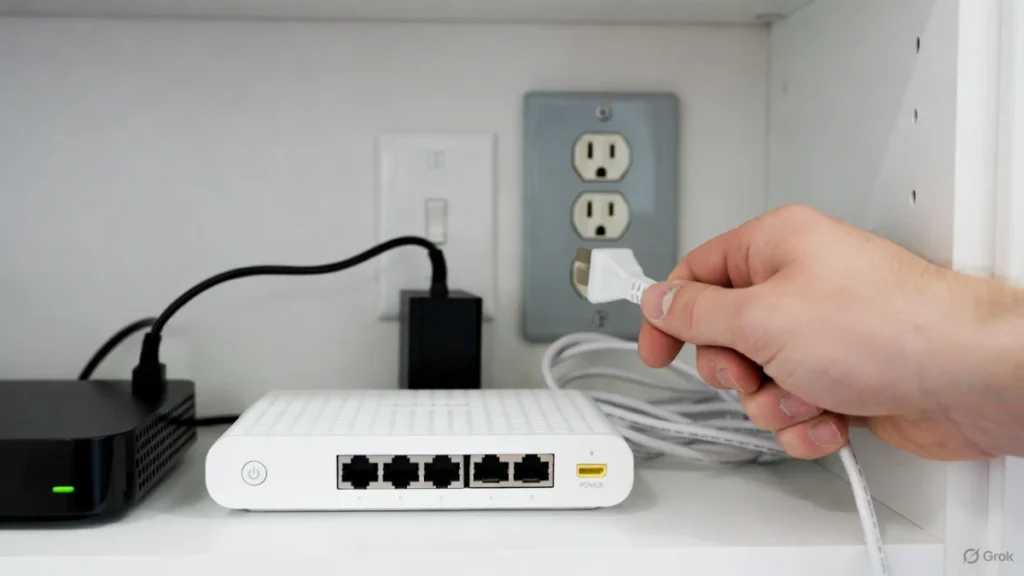
Restart modem/router first (modem → router). After Wi‑Fi is stable, power-cycle the opener/MyQ device if needed. Then check the MyQ app.
This ensures MyQ reconnects under the new settings instead of clinging to an old session.
Step 8: If MyQ still disconnects, reconnect it fresh (last step)
If it continues dropping, remove the device in the app (if possible) and reconnect it again to the stable 2.4GHz network. This is annoying, but it can clear an unstable configuration.
If it still disconnects on a strong 2.4GHz network, you may be dealing with hardware/firmware issues or a home network that’s unusually noisy. At that point, a mesh upgrade or a support check may be the fastest route.
FAQs
Why does MyQ go offline when the garage door is closed?
Because the Wi‑Fi signal gets weaker. Metal doors and garage structure can block signal. A mesh node/extender placed correctly is usually the fix.
Is 2.4GHz better than 5GHz for MyQ?
For range and stability, yes in most garages. 5GHz is faster but shorter range, and band steering can cause smart devices to disconnect.
What’s the most common permanent fix?
A stable 2.4GHz SSID plus stronger Wi‑Fi coverage near the garage (mesh node/extender).