MyQ Works on Mobile Data But Not on Wi‑Fi: Causes and Fixes (Router Settings)
If the MyQ app works fine when your phone is on mobile data, but the moment you switch to your home Wi‑Fi it stops working (or won’t load devices, shows errors, or won’t connect), that’s a very specific clue: your opener isn’t necessarily the problem—your Wi‑Fi network setup is.
In most homes, this happens because of router security settings, DNS/ad-blocking, a VPN, or a “guest/isolated” network that blocks what MyQ needs.
This guide will help you fix it without random trial-and-error.
Safety note: This is network/app troubleshooting only. You won’t be touching springs, cables, or door hardware.
Quick answer: why it happens
When MyQ works on mobile data but not Wi‑Fi, one of these is usually true:
Your Wi‑Fi is using a VPN, ad-blocking DNS, or a content filter that blocks MyQ’s servers. Or your router is isolating devices (guest network / client isolation) so the app can’t talk properly. In some cases, a strict firewall setting or DNS issue prevents the app from loading device status.
So the goal is to test your network in a controlled way and remove the blocker.
Step 1: Confirm it’s truly a Wi‑Fi-only problem
Do this quick test:
- Open MyQ on mobile data (works).
- Turn on Wi‑Fi (same phone) and reopen the app (fails).
- Now test from a second device (family phone) on the same Wi‑Fi if possible.
If multiple phones fail on Wi‑Fi, the issue is almost certainly router/DNS/security-related.
Step 2: Turn off VPN on your phone (very common)
If you use a VPN app on your phone, it can break how some smart-home apps connect.
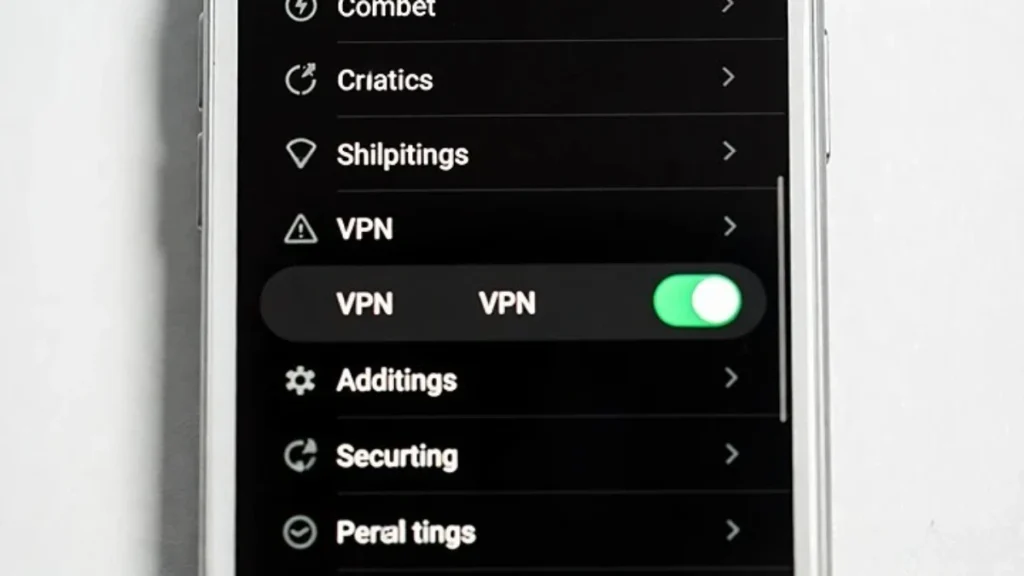
Temporarily disable VPN, then test MyQ again on Wi‑Fi. If it works immediately, you’ve found the cause. You can usually keep using VPN, but you may need to exclude MyQ from VPN traffic depending on the VPN app.
Step 3: Check if you’re on Guest Wi‑Fi (don’t use it for MyQ)
Guest networks often have restrictions and isolation.
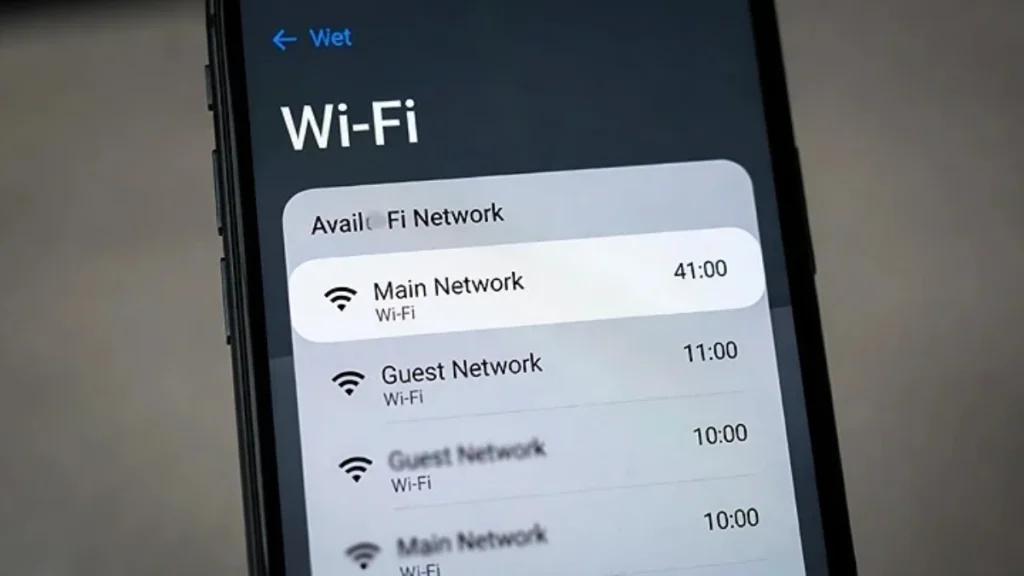
Make sure your phone is connected to your main Wi‑Fi, not a guest network. If you have a separate IoT network, that can work too—but it must allow internet access and not block required services.
Step 4: Disable ad-blocking DNS / “family filter” temporarily
This is one of the top reasons MyQ fails on Wi‑Fi.
Examples include:
- Pi-hole
- AdGuard DNS
- NextDNS
- “Family Shield” DNS
- router-level security/ad blocking
Temporarily switch DNS to a standard option (or set your phone’s Wi‑Fi DNS back to automatic), then test.
If MyQ starts working, your DNS/filter was blocking it. You can keep your filter, but you may need to whitelist MyQ domains (advanced).
Step 5: Restart your router (simple but effective)
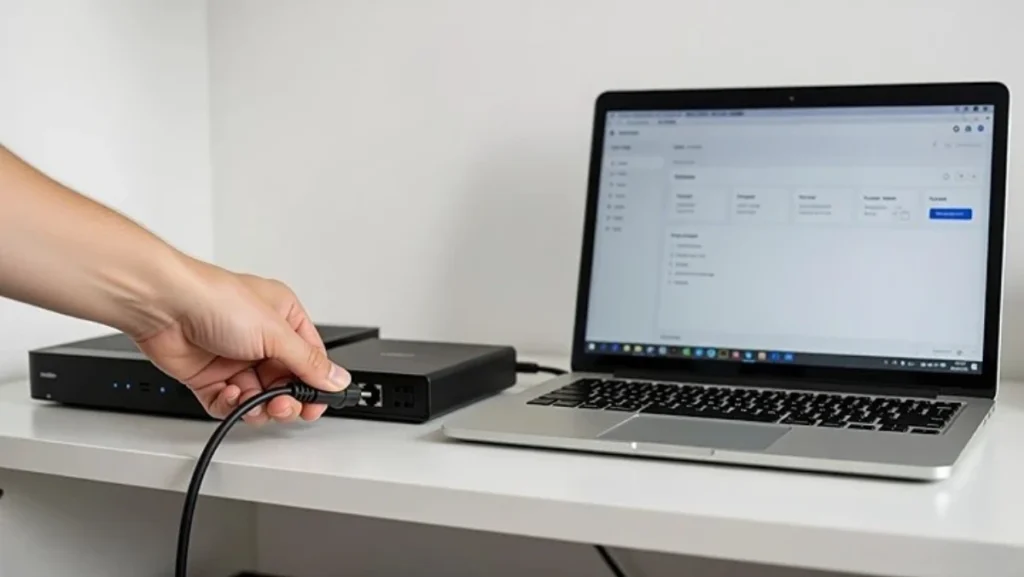
After changing VPN/DNS settings, do a router restart. Sometimes the router gets stuck or applies changes slowly.
Restart modem then router, wait 2–3 minutes, then test MyQ on Wi‑Fi again.
Step 6: Check router “client isolation” and firewall settings
Some routers have features like:
- AP isolation / client isolation
- “Block LAN to WLAN”
- strict firewall modes
- device access control rules
These can stop apps from reaching devices properly or disrupt cloud communication.
If you see anything like isolation enabled on your Wi‑Fi, turn it off (at least for testing). Then test again.
Step 7: If MyQ is connected but status won’t load, check 2.4GHz + signal anyway
Even though your issue is “app works on data,” you still want the opener itself stable:
- Keep MyQ on a stable 2.4GHz network
- Ensure Wi‑Fi signal is strong in the garage
If the opener disconnects often, you’ll see mixed behavior. You already have posts on “offline” and “not connecting to Wi‑Fi”—link them later.
Step 8: The quick “prove it” test — try a hotspot
If you want to prove the router is the issue:
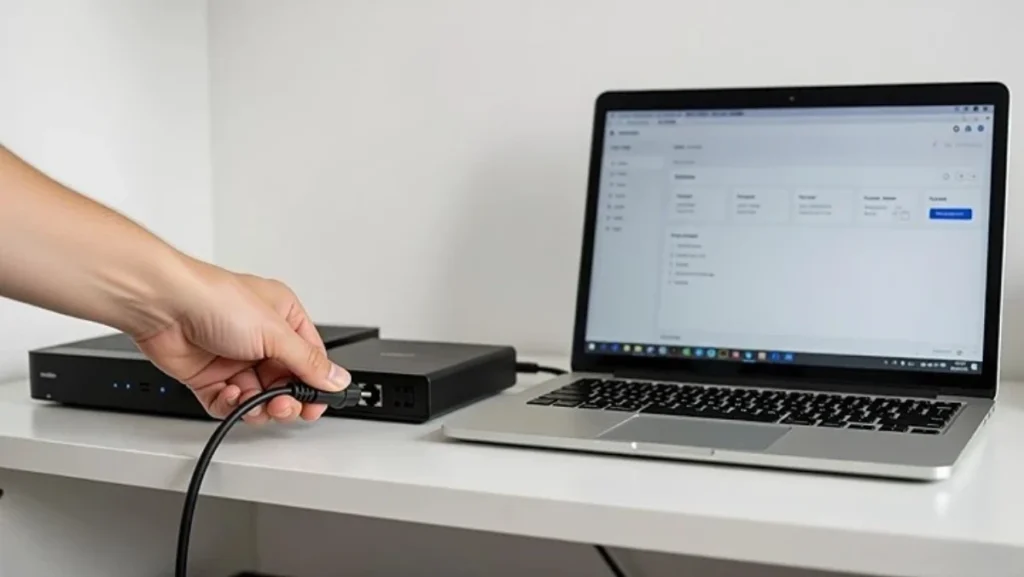
- Turn on a phone hotspot and connect your MyQ device to that network (if practical).
- If MyQ behaves normally on the hotspot, your home router/DNS/filter is almost certainly the blocker.
You don’t need to keep it on hotspot forever—this is just a diagnosis method.
When to call support or a technician
If you’ve disabled VPN, removed DNS filtering, verified you’re not on guest Wi‑Fi, and MyQ still fails only on your Wi‑Fi, the next step is usually router-level troubleshooting. At that point, your ISP/router support or a networking-savvy technician can help faster than endless app reinstalls.
FAQs
Why does MyQ work on mobile data but not Wi‑Fi?
Because something about your Wi‑Fi network (VPN, DNS/ad blocking, guest isolation, firewall rules) is blocking the MyQ app’s connection.
Is this a MyQ device problem?
Usually no. It’s most often a network/router setting issue.
What’s the fastest fix?
Disable VPN, make sure you’re on the main Wi‑Fi (not guest), and temporarily remove ad-blocking DNS. Then reboot the router.