MyQ Not Connecting to Wi-Fi? 9 Fixes to Try
MyQ Not Connecting to Wi-Fi: Is your MyQ garage door opener not connecting to Wi-Fi? If setup keeps failing, the app cannot find your opener, or the device gets stuck while connecting, the problem may be related to your Wi-Fi signal, password, router settings, or device setup process.
Many MyQ devices require a compatible 2.4 GHz Wi-Fi connection and a reliable signal inside the garage. However, the exact setup process depends on whether your garage door opener has built-in Wi-Fi or uses a separate MyQ Smart Garage Hub.
Before resetting anything, identify your device and work through the troubleshooting steps below.
Quick Answer: How to Fix MyQ Not Connecting to Wi-Fi
Start with these checks:
- Confirm that your garage door opener supports direct Wi-Fi connectivity.
- Verify that your home internet is working.
- Check that your Wi-Fi network supports the device’s requirements, including 2.4 GHz where required.
- Double-check your Wi-Fi password.
- Improve the wireless signal near the garage.
- Keep Bluetooth enabled on your phone during supported setup processes.
- Follow the MyQ app’s instructions for your exact device.
If the connection still fails, use the device’s indicator lights and the official model-specific troubleshooting guide to narrow down the problem.
1. Check Whether Your Garage Door Opener Supports Wi-Fi
Before troubleshooting your router, confirm that your opener can connect to MyQ directly.
Look at the logo or label on your garage door opener.
Some models display a Wi-Fi symbol or a “Powered by myQ” logo. A MyQ logo alone does not necessarily mean that the opener has built-in Wi-Fi.
If your existing opener is not Wi-Fi capable, you may need a compatible MyQ Smart Garage Hub instead of connecting the motor directly to the app.
Check compatibility before buying additional equipment or repeating the setup process.
2. Make Sure Your Home Internet Is Working
A MyQ device cannot complete its online connection if your home internet is unavailable.
Try these steps:
- Connect your phone to your home Wi-Fi.
- Open a few websites to confirm internet access.
- Check whether other devices can connect normally.
- Restart your modem and router according to their manufacturers’ instructions if the connection is unstable.
- Wait until internet service has fully returned before trying MyQ setup again.
If other devices also lose their connection, solve the internet problem first. Repeatedly resetting your garage door opener will not fix an internet outage.
3. Confirm That a Compatible 2.4 GHz Wi-Fi Network Is Available
Many MyQ Wi-Fi garage door openers and Smart Garage Hubs require a 2.4 GHz Wi-Fi network.
Some modern routers combine their 2.4 GHz and 5 GHz bands under one network name. This can make setup confusing if the device cannot connect to the appropriate band.
Try the following:
- Check your router’s app or administration page to confirm that 2.4 GHz Wi-Fi is enabled.
- If your router shows separate network names, select the compatible 2.4 GHz network during setup.
- If the router combines both bands and setup fails, check the manufacturer’s recommendations before temporarily separating the network names.
- Restore your original network configuration after testing if the change does not help.
Do not assume that every router needs its bands separated. Router behavior and device requirements vary, so follow the instructions for your particular equipment.
4. Enter the Correct Wi-Fi Password
An incorrect Wi-Fi password is a common reason setup does not finish.
A password may be mistyped when it contains uppercase letters, numbers, or special characters.
To check it:
- Open your phone’s Wi-Fi settings.
- Confirm the exact network name you want the device to use.
- Check the password carefully.
- Return to the MyQ app and follow the setup prompts again.
Also make sure you are using your main home network rather than a guest network that may restrict communication between devices.
If you recently changed your router or Wi-Fi password, the opener may need to be connected again using the updated details.
5. Improve the Wi-Fi Signal in Your Garage
Your Wi-Fi may work perfectly in the living room but fail near the garage door opener.
Distance, thick walls, metal surfaces, and other obstacles can weaken the wireless signal.
Try these improvements:
- Check your phone’s Wi-Fi signal while standing near the opener.
- Move your router closer to the garage if practical.
- Position a compatible mesh node or Wi-Fi extender where it receives a strong signal from your main router.
- Avoid placing networking equipment inside metal cabinets or behind large obstructions.
A phone’s signal is only an indication, not a perfect measurement of the opener’s connection. If the signal remains weak, consider testing the network with suitable equipment or asking your internet provider for help.
6. Keep Your Phone Near the Opener and Enable Bluetooth
Some built-in Wi-Fi MyQ openers use Bluetooth during the initial setup process.
For compatible models, Chamberlain’s setup guidance recommends keeping your phone close to the opener and leaving Bluetooth enabled during setup.
Try this sequence:
- Stand close to the garage door opener.
- Turn on Bluetooth on your phone.
- Connect your phone to your home Wi-Fi.
- Open the MyQ app and begin the device setup again.
- Follow the on-screen instructions without switching apps unnecessarily.
Keep your Wi-Fi password ready before you start. If the app shows a specific error or LED pattern, record it rather than repeatedly restarting the process.
7. Check the Opener’s Indicator Lights
The indicator lights can help identify the stage where the connection is failing.
On certain built-in Wi-Fi garage door openers, the setup indicators generally provide clues such as:
- No light: The device may not have power or may not be in the expected state.
- Blinking blue: The opener may be ready for setup.
- Solid blue: The phone may have connected to the opener, although setup may not be complete.
- Blinking blue and green: The device may be attempting to connect to the router.
- Blinking green: The router connection may be established while the device attempts to reach the MyQ server.
- Solid green: The device may have completed its connection successfully.
These patterns are not universal across every opener and hub. Check the official guide for your exact model before deciding what a light means or pressing any setup buttons.
8. Use the Correct Setup Process for Your Device
A built-in Wi-Fi garage door opener and a separate MyQ Smart Garage Hub are different devices. Their setup procedures are not interchangeable.
For a built-in Wi-Fi opener
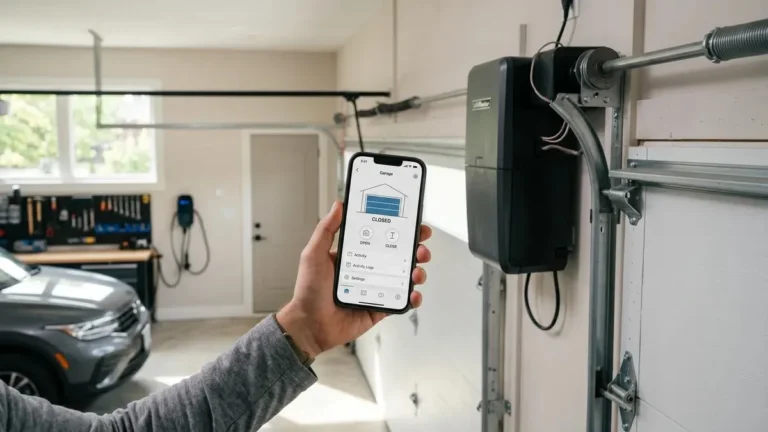
Open the MyQ app and follow its instructions to add or reconnect the Wi-Fi-enabled opener. Keep Bluetooth enabled if required by your model, stay near the opener, and enter the correct network details.
For a separate Smart Garage Hub
Confirm that the hub has power and is compatible with your garage door opener. Use the hub-specific instructions in the MyQ app or the official support guide.
Do not repeatedly press Learn or Reset buttons based on instructions intended for a different model. You could erase settings or create more setup work.
9. Check Router Settings and Contact Support if Needed
If your device still will not connect, check whether the router meets the manufacturer’s network requirements.
Depending on the device, relevant settings can include:
- A compatible 2.4 GHz network.
- A visible Wi-Fi network name.
- Supported wireless security settings.
- DHCP enabled so the device can obtain network information.
- No network isolation or access restriction that blocks the device from reaching required services.
Do not disable your router’s security or firewall entirely to make MyQ connect. If you are unsure about a setting, check your router manufacturer’s documentation.
If the setup continues to fail, note the opener or hub model, the indicator-light pattern, and any app error message. Contact MyQ or Chamberlain support with those details.
What If MyQ Connects but Then Disconnects?
If your device connects successfully but later goes offline, the problem may be different from an initial setup failure.
For example, a weak garage Wi-Fi signal, router interruption, or a recent network change can cause repeated disconnections.
Read our related guide: MyQ Garage Door Opener Shows Offline: Reasons and Fixes That Work.
That article focuses on a device that was connected but now appears offline, while this guide focuses on problems connecting to Wi-Fi in the first place.
Frequently Asked Questions
Why won’t my MyQ garage door opener connect to Wi-Fi?
Common causes include an incorrect password, a weak signal, an incompatible network configuration, or an incomplete setup process. Check the device requirements and troubleshoot one item at a time.
Does MyQ require 2.4 GHz Wi-Fi?
Many MyQ Wi-Fi openers and Smart Garage Hubs require 2.4 GHz Wi-Fi. Confirm the requirements for your exact model before changing router settings.
Why can’t the MyQ app find my garage door opener?
The opener may not support direct Wi-Fi connectivity, may not be in setup mode, or may require Bluetooth during setup. Check compatibility and follow the app’s instructions for your device.
Should I reset my MyQ garage door opener if Wi-Fi setup fails?
A factory reset should not be your first step. Check the network, password, signal, and model-specific setup procedure first. Reset only when the official instructions recommend it.
Can a Wi-Fi extender help MyQ connect?
Yes, if weak signal coverage is the problem. Place the extender or mesh node where it receives a reliable signal from the main router and can improve coverage near the garage.
What should I do if the opener’s light keeps blinking?
The meaning depends on your opener model and the light pattern. Record the color and whether it is blinking or solid, then use the corresponding official troubleshooting instructions.
Final Thoughts
When MyQ is not connecting to Wi-Fi, start by confirming device compatibility, internet access, the correct network password, and a strong signal in the garage. Then follow the setup process designed for your specific opener or Smart Garage Hub.
Avoid unnecessary factory resets and do not change advanced router settings without understanding their purpose. If the device still fails to connect, the model number, indicator lights, and any app error message will help narrow down the cause.
A careful, step-by-step diagnosis is usually more useful than repeatedly restarting or resetting the same equipment.