MyQ Not Sending Notifications: Fix Alerts on iPhone/Android (Step-by-Step)
MyQ notifications are one of the main reasons people use the app—so when alerts stop showing up, it’s frustrating. The good news is that “MyQ not sending notifications” is usually not a garage door opener problem. It’s almost always a phone settings issue (permissions, Focus/Do Not Disturb, battery optimization), or the app isn’t allowed to run reliably in the background.
This guide walks you through the fixes that actually work on both iPhone and Android.
Quick answer: why MyQ notifications stop
Most notification failures happen because notifications are turned off for the MyQ app, the phone is blocking background activity, or a Focus/Do Not Disturb mode is silencing alerts. On Android, battery optimization can also stop MyQ from working reliably in the background.
So the goal is: allow MyQ notifications + allow background activity + confirm MyQ is logged in and your device is online.
Step 1: Confirm the opener/device is online first
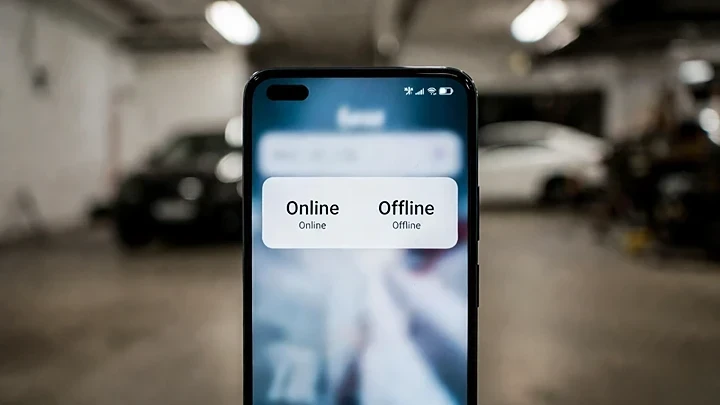
Before you change phone settings, open the MyQ app and check if your garage door device shows current status (not “offline”). If the device is offline, notifications won’t trigger reliably.
If your device shows offline often, fix stability first with your related guides:
- MyQ shows offline
- MyQ keeps disconnecting
If the device is online but notifications aren’t arriving, continue below.
Step 2: Check MyQ notification settings inside the app
Some apps have per-device notification toggles. Inside the MyQ app, check that alerts are enabled for the garage door you care about.
Also confirm you’re signed into the correct MyQ account (people sometimes have two accounts and don’t realize it).
Step 3 (iPhone): Turn on notifications for MyQ
On iPhone: Settings → Notifications → MyQ
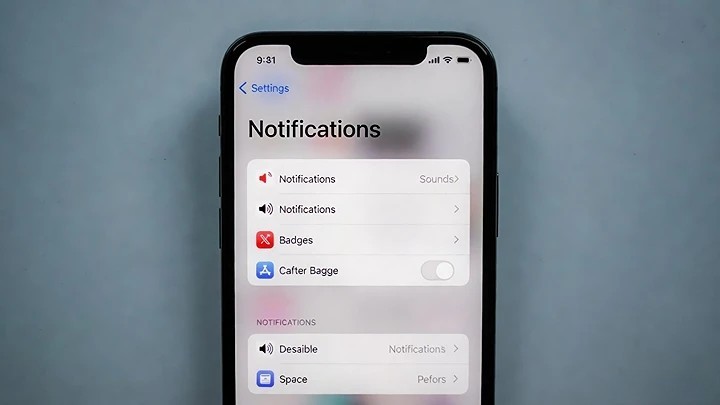
Make sure:
- Allow Notifications is ON
- Lock Screen / Notification Center / Banners are enabled (choose what you want)
- Sounds are ON (optional, but helpful)
- Alerts are not set to “Deliver Quietly”
Then trigger a test event (open/close) and check.
Step 4 (iPhone): Check Focus / Do Not Disturb
A very common “it stopped suddenly” reason is Focus mode.
On iPhone:
- Check if Focus (Do Not Disturb, Sleep, Work) is ON.
- If it’s ON, either turn it off or allow MyQ notifications during Focus.
- Also check Scheduled Focus settings that might turn on automatically at certain times.
If your notifications fail only at night, this is one of the first things to confirm.
Step 5 (iPhone): Allow background activity
If the app can’t refresh in the background, notifications can become inconsistent.
Check:
- Settings → General → Background App Refresh → MyQ ON
- Settings → Cellular → MyQ ON (if you want alerts on mobile data too)
Also ensure Low Power Mode isn’t always enabled. Low power mode can reduce background behavior.
Step 6 (Android): Turn on notifications + remove battery restrictions
On Android, notifications can be blocked in multiple places.
First, check:
- Settings → Apps → MyQ → Notifications → ON
Then check battery:
- Settings → Apps → MyQ → Battery
Set it to Unrestricted (or “Not optimized”) if available. Battery optimization is a common reason apps miss notifications.
Also disable Data Saver restrictions for MyQ if you use them.
Step 7 (Android): Allow background data and remove sleep restrictions
Some Android phones have extra layers like:
- “Sleeping apps”
- “Deep sleep”
- “Restricted background activity”
Make sure MyQ is not in a sleeping list. Also ensure background data is allowed so the app can receive push updates consistently.
Step 8: Update the app and restart your phone
If you’ve fixed settings but notifications still don’t work, update the MyQ app. Then restart your phone once. This clears stuck notification services more often than people expect.
Step 9: Log out/in or reinstall (best last-step fix)
If notifications used to work and now nothing helps, reinstalling is often the cleanest fix. It resets app permissions and background tokens.
After reinstall:
- sign in
- allow notification permission prompt
- test again
Why notifications can be delayed (even when “working”)
Sometimes notifications aren’t broken—just delayed.
Delays can happen when:
- your phone has weak signal
- battery saver is aggressive
- the app was never opened for weeks and lost background permission
- the device goes offline occasionally
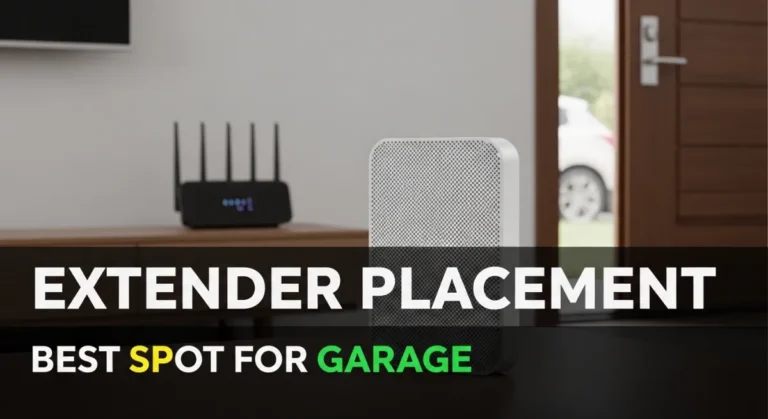
If delays keep happening, treat it like a stability issue and fix your MyQ connection (mesh/extender near garage).
FAQs
Why am I not getting MyQ notifications on iPhone?
Usually Focus/Do Not Disturb, notifications turned off, or Background App Refresh disabled.
Why are MyQ notifications not working on Android?
Often battery optimization or background restrictions are blocking the app.
Do I need MyQ to be open for notifications to work?
No, but the app must be allowed to run normally in the background and have notification permission.