MyQ Account Login Problems (Can’t Sign In): Fix Email/Password Errors and App Issues
MyQ Account Login Problems : If you can’t sign in to the MyQ app, it can feel like everything is broken—even though your garage door still works with the remote. In most cases, MyQ login problems come from one of three areas: credentials (email/password), account verification/security, or app/network issues that prevent the login process from completing.
This guide helps you troubleshoot MyQ sign-in problems in a clean order so you don’t keep repeating the same steps.
Quick answer: the fastest path to fix MyQ sign-in issues
Start by confirming you’re using the correct email (many people have more than one). Then reset the password once, update the app, and temporarily disable VPN/ad-blocking DNS if you use them. If the login still fails, reinstalling the app is often the cleanest fix.
Step 1: Confirm you’re using the right email address (common mistake)
A surprising number of “wrong password” loops happen because the email is wrong, not the password. People often have:
- a personal email and a work email
- a spouse’s email tied to the MyQ account
- an Apple/Google login used originally, then forgotten
Try searching your email inbox for “MyQ” or “Chamberlain” messages to confirm which email address is associated with the account.
Step 2: Reset the password (do it once, then stop guessing)
If you’re not 100% sure of the password, stop guessing. Too many attempts can trigger security delays.
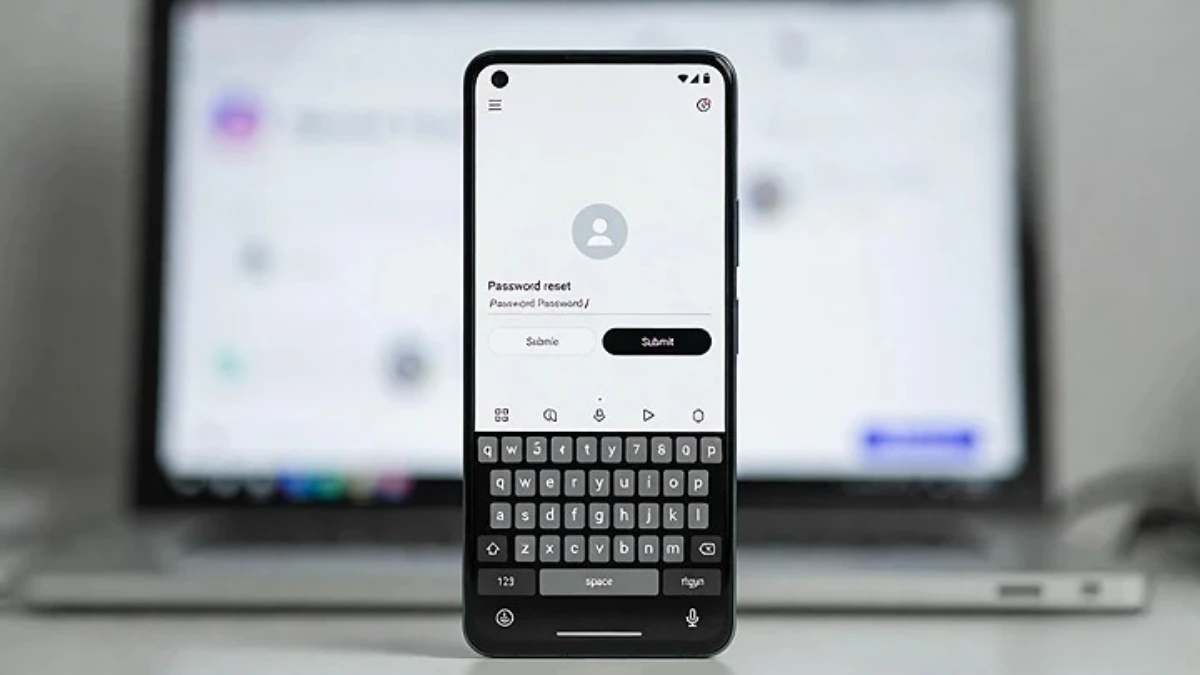
Use the “Forgot password” flow and create a new password. After resetting, wait a minute, then sign in again slowly.
If you never receive the reset email, check spam/junk folders. If it’s not there, your email might be wrong (Step 1) or email delivery is delayed.
Step 3: Check for verification prompts or account lock behavior
Sometimes the sign-in fails because the account needs verification or the service is being cautious after repeated attempts. If you see prompts about verification, follow them fully. If you think you triggered a lockout, wait a short while and try again rather than repeatedly hammering the login button.
Step 4: Try signing in on a different network
This step tells you whether it’s a network issue.
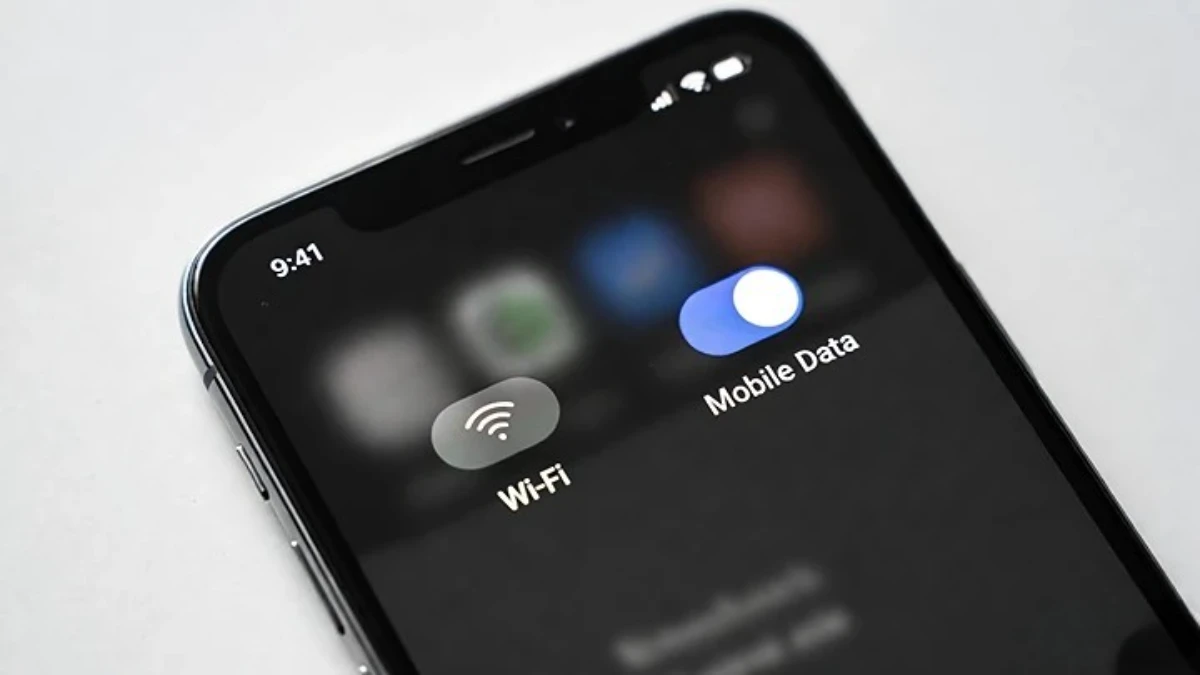
- Try mobile data instead of Wi‑Fi (or the opposite).
- If you have another phone, try logging in there.
If login works on mobile data but not on your Wi‑Fi, your router/DNS filtering may be blocking login traffic. That matches your “works on mobile data but not on Wi‑Fi” post and is a strong internal link.
Step 5: Disable VPN, Private DNS, and ad-blocking temporarily
VPN and filtered DNS are common causes of “can’t sign in” or endless loading at login.
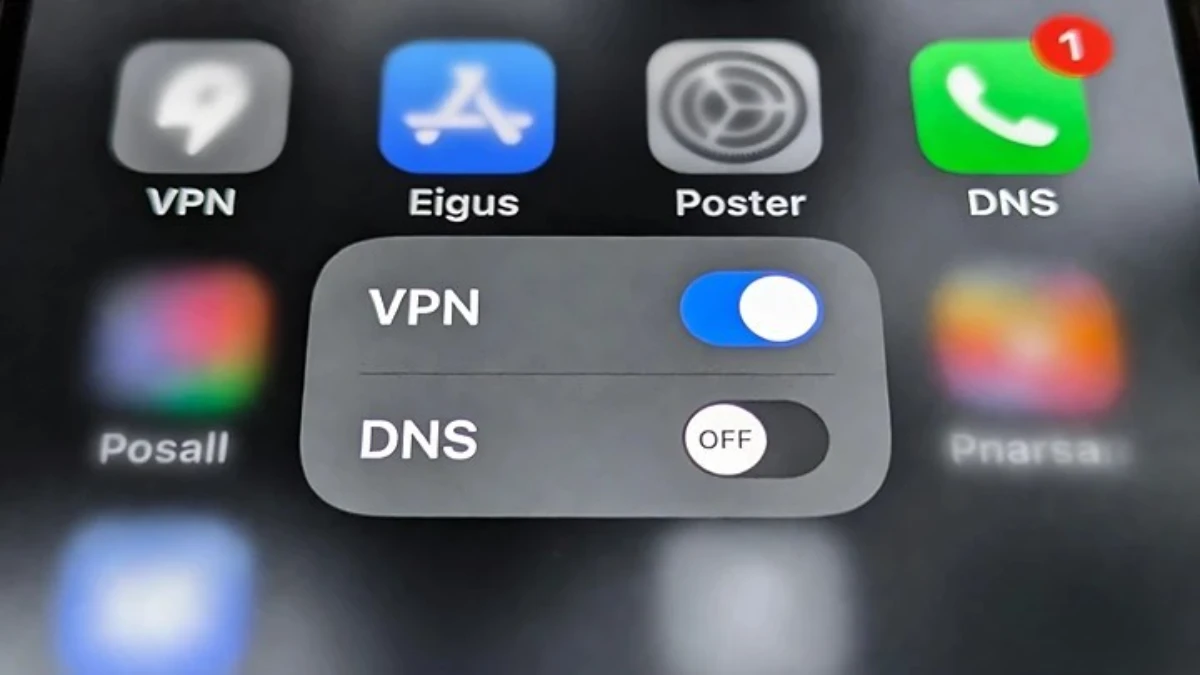
Temporarily disable:
- phone VPN
- Private DNS / DNS-over-HTTPS settings (if enabled)
- ad-blocking DNS (NextDNS, AdGuard, Pi-hole-type setups)
Then try logging in again.
If this fixes it, you can re-enable your tools later, but you may need to whitelist MyQ-related services.
Step 6: Update the MyQ app (and your phone OS)
Login issues can spike after app updates or OS updates—especially if you’re running an older version.
Update the MyQ app from the App Store/Play Store. If your phone has a pending OS update, install it and restart your phone once.
Step 7: Clear cache / reinstall the app (most reliable fix)
If you’ve tried the steps above and the app still won’t sign in, reinstalling is often faster than troubleshooting a broken session.
- On Android, you can clear cache and data first, then try again.
- On iPhone, offloading or deleting and reinstalling is the clean path.
After reinstall, sign in and accept any permission prompts.
Step 8: If it signs in but immediately logs out
That’s usually not “wrong password.” It’s often a session/token issue. Your related post “MyQ keeps logging out” is the correct next step (internal link).
When to contact support
If you confirmed the correct email, reset the password, disabled VPN/DNS blocks, updated/reinstalled the app, and still cannot sign in, the remaining possibilities are account-side issues that only support can see (verification, service problems, or account flags). At that point, MyQ support is the fastest route.
FAQs
Why does MyQ say my password is wrong when it isn’t?
Often because the email is wrong, auto-fill is inserting an old password, or the app session is stuck. Resetting the password once and reinstalling usually fixes it.
I reset my password but didn’t get the email—what now?
Check spam/junk. If it’s not there, confirm you used the correct email address. Email delivery can also be delayed.
Can VPN or ad-blocking stop MyQ login?
Yes. VPN and filtered DNS can break login flows and cause blank screens or endless loading.