MyQ Keeps Disconnecting From Wi‑Fi: Causes and Stable Fixes (Stop Going Offline)
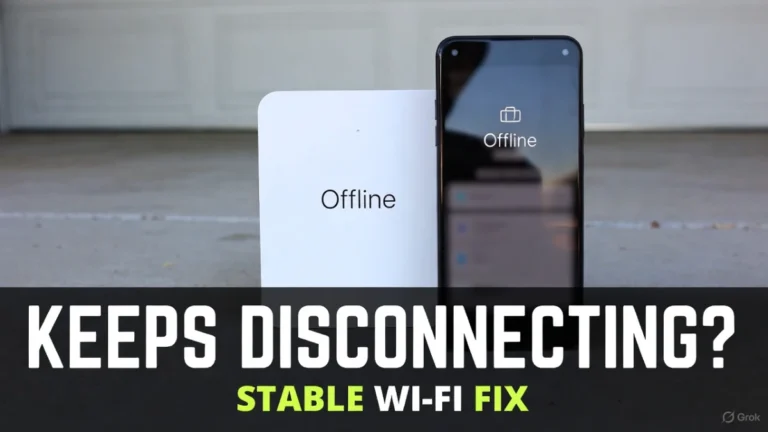
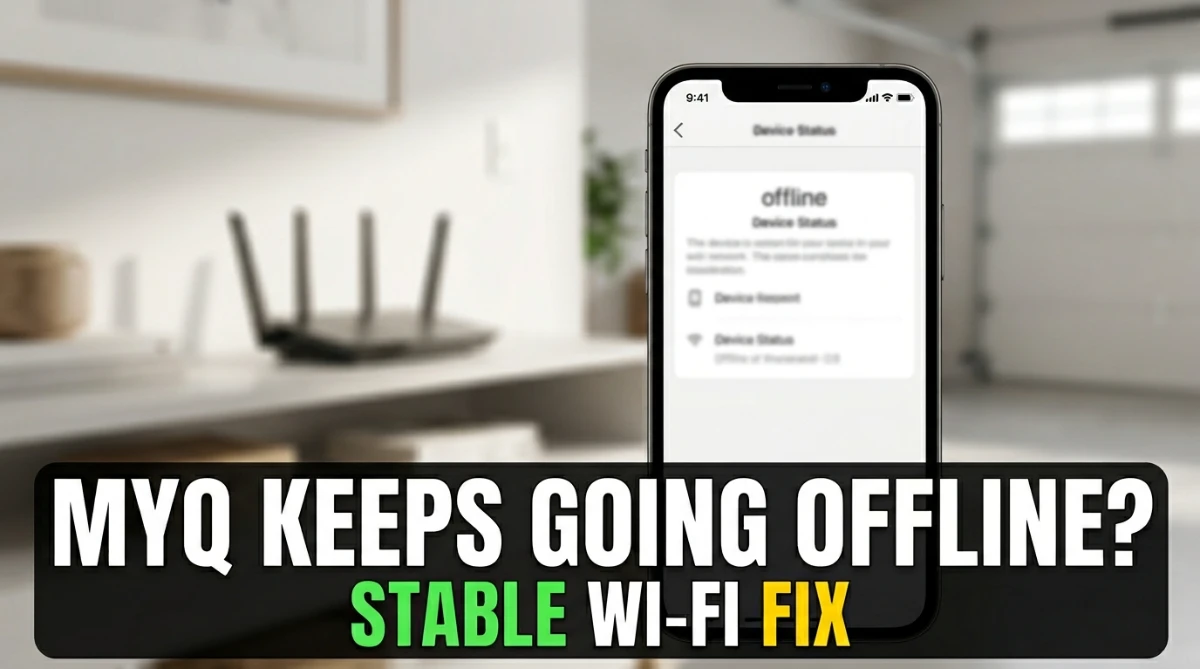
If your MyQ connects successfully, works for a while, and then randomly shows Offline again (sometimes daily), you’re dealing with a stability problem, not a “setup problem.”
In most homes, MyQ disconnects because the Wi‑Fi signal in the garage is borderline, the router is switching bands/settings in the background, or the network security mode isn’t smart‑device friendly. The good news is you can usually fix this permanently with a few changes—without replacing the opener.
Quick safety note: This is Wi‑Fi/app troubleshooting only. You’re not working on door springs/cables or anything dangerous.
The #1 thing to understand: garages are Wi‑Fi “dead zones”
Garages often have a mix of concrete, brick, metal tracks, and sometimes a metal-reinforced door. Even if your phone “shows Wi‑Fi,” your opener’s Wi‑Fi hardware is usually weaker than a modern phone. So a connection that looks okay can still be unstable.
That’s why the goal isn’t maximum speed—it’s consistent signal.
Step 1: Identify the pattern (this tells you the real cause)
Before changing settings, notice when it goes offline:
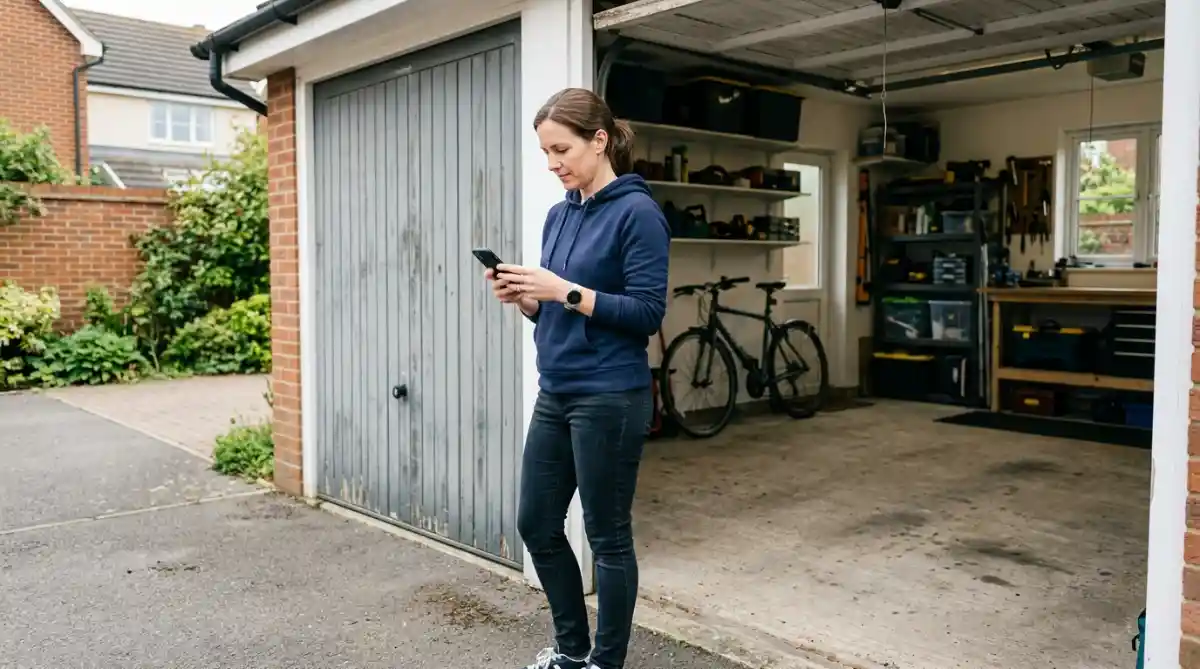
- Offline mostly when the garage door is closed: signal blockage is likely.
- Offline at about the same time each day: router auto-optimizing, channel switching, or scheduled reboots may be causing drops.
- Started after a new router/ISP change: WPA3-only, band steering, or guest/IoT isolation settings are top suspects.
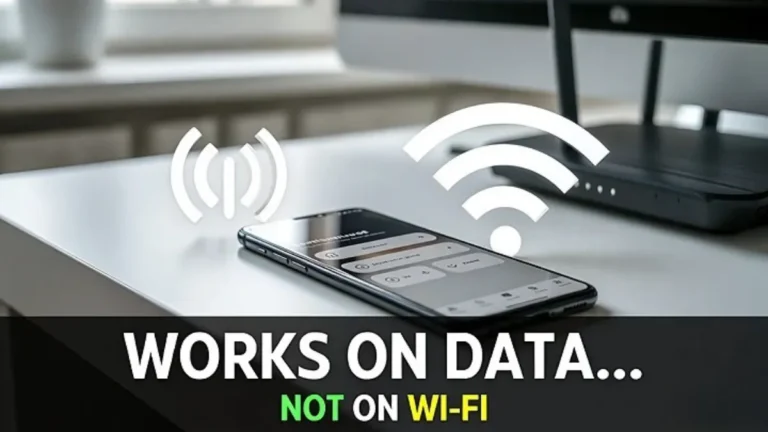
- Works on mobile data but acts weird on Wi‑Fi: DNS/ad-blocking or network filtering may be interfering.
Write down the pattern once—it saves you hours.
Step 2: Put MyQ on a “real” 2.4 GHz network (biggest stability win)
A huge number of “keeps disconnecting” cases happen because the router uses one network name for both 2.4 GHz and 5 GHz, and the device ends up switching or struggling with band steering.
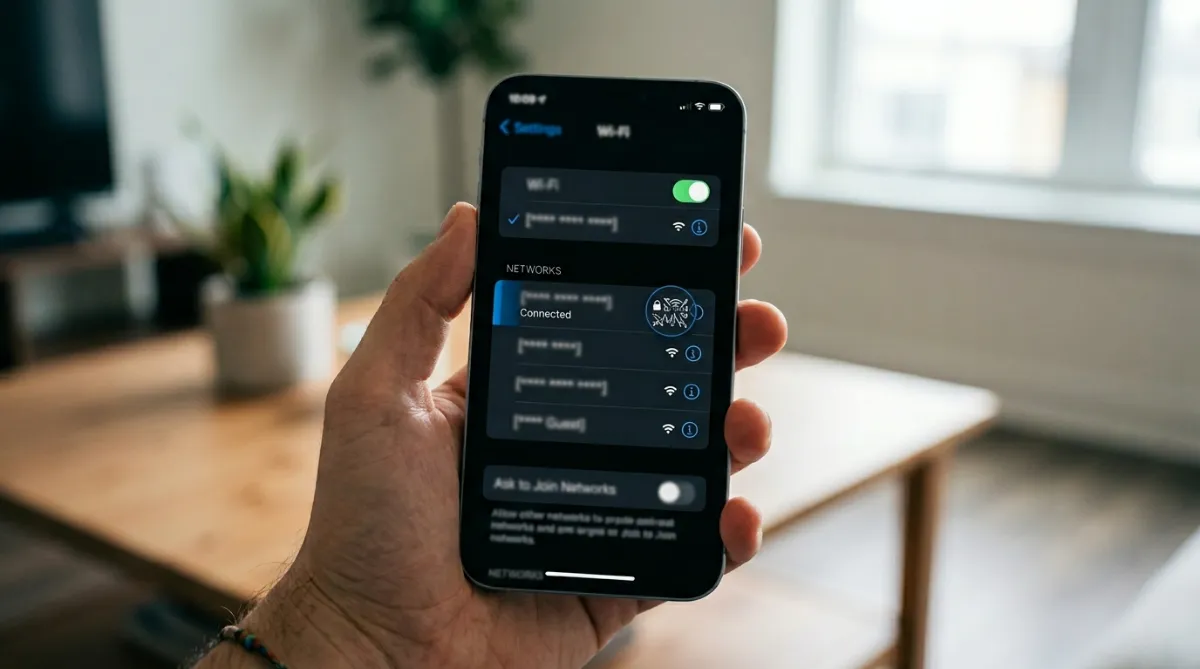
Best practice for stability:
Create a separate 2.4 GHz SSID (example: HomeWiFi-2G) and connect MyQ to that.
If your router allows it, do this:
- Create
HomeWiFi-2G(2.4 only) - Connect MyQ to
HomeWiFi-2G - Leave your phones/laptops on the combined network if you want—MyQ just needs stable 2.4
This alone fixes many “random offline” issues.
Step 3: Fix signal the correct way (don’t put the extender in the wrong spot)
Most people place a Wi‑Fi extender too deep inside the garage, where the extender itself receives a weak signal—so it repeats a weak signal and MyQ still drops.
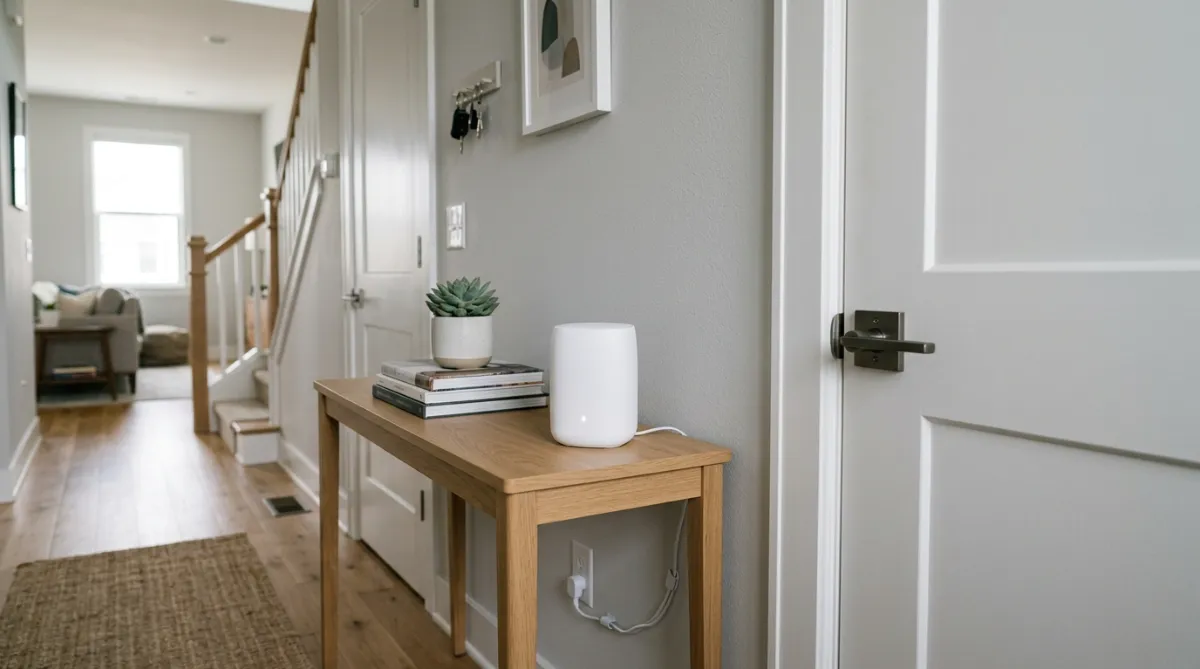
Better placement:
Put a mesh node/extender inside the house near the garage wall, where it still gets a strong connection from the main router but is close enough to improve coverage in the garage.
A simple way to choose the spot:
- Stand in the house near the garage wall
- If your phone has strong Wi‑Fi there, that’s a good node/extender location
- Don’t hide it behind metal shelves, a freezer, or inside a cabinet
If you already wrote a “best extender placement for garage” guide, link it here.
Step 4: Check router security mode (avoid WPA3-only)
Some routers default to WPA3-only. Many smart devices will connect once but won’t stay stable.

For MyQ reliability, try:
- WPA2 or WPA2/WPA3 mixed
After changing it, reboot the router and monitor for 24 hours.
Step 5: Avoid Guest Wi‑Fi and “isolation” features
Guest networks often block device communication and sometimes interfere with how cloud-connected devices stay authenticated.
Make sure MyQ is on your main network, not guest.
Also look in router settings for:
- AP isolation / client isolation
- “Block local network access”
- overly strict IoT isolation rules
If you don’t know what a setting does, don’t change everything—just avoid guest networks and keep things standard.
Step 6: Stop “random router behavior” that kicks devices off
Some routers do background changes that smart devices hate:
- aggressive auto channel switching
- Wi‑Fi optimization features
- scheduled reboots
If your MyQ drops offline at consistent times, check for any “scheduled restart” or “auto optimize” features and disable them temporarily for testing.
Step 7: Do a clean reboot sequence (modem → router → MyQ)
After you make changes, do this in order:
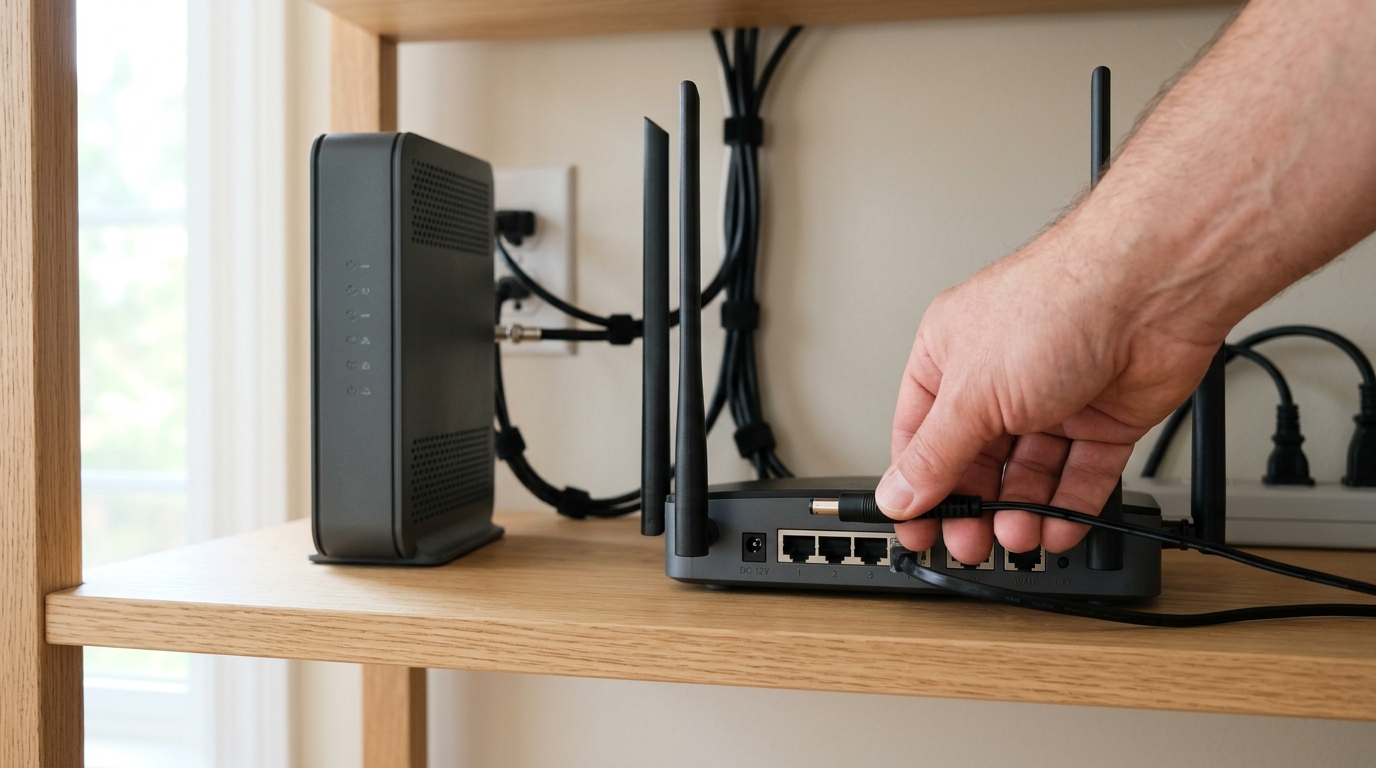
- Reboot modem
- Reboot router
- (Optional) Power-cycle the opener/MyQ device if it remains stuck offline
Then monitor stability. Don’t change five things at once without testing—make a change, then observe for a day.
Step 8: If it still disconnects, reconnect MyQ fresh (last software step)
If your network is now stable (good signal + 2.4 GHz SSID + WPA2/mixed), but MyQ still drops, reconnect it cleanly:
- Remove device from app (if possible)
- Put opener/MyQ into setup mode
- Re-add and connect to your stable 2.4 GHz SSID
If it still disconnects even in ideal conditions, it may be a device hardware issue or an unusually restrictive network environment.
Quick “Yes/No” troubleshooting guide
Use this to narrow the root cause fast:
Does MyQ go offline only when the garage door is closed?
Yes → signal placement/mesh node issue.
Does MyQ go offline around the same time daily?
Yes → router optimization/scheduled restart/channel switching.
Did it start after a new router?
Yes → WPA3-only, band steering, guest network, DNS/filtering.
Does MyQ work on cellular data but not home Wi‑Fi?
Yes → DNS/ad-blocking or router filtering settings.
When to call support or upgrade your network
If you’ve already done:
- dedicated 2.4 GHz SSID
- stronger signal near garage
- WPA2 or mixed mode
…and it still drops offline every day, then a mesh upgrade or router-level troubleshooting may be the best use of your time.
FAQs
Why does MyQ go offline when the garage door is closed?
Because the door and garage structure can block Wi‑Fi. A mesh node/extender placed correctly usually fixes it.
Is 2.4 GHz better for MyQ?
For garage stability, usually yes. It travels farther and penetrates walls better than 5 GHz.
What’s the most common permanent fix?
A dedicated 2.4 GHz SSID + stronger Wi‑Fi coverage near the garage (mesh node inside the house near the garage wall).
Related Posts
MyQ Works on Mobile Data But Not on Wi‑Fi: Causes and Fixes
MyQ Garage Door Opener Shows Offline: Reasons and Fixes That Work
MyQ Not Connecting to Wi‑Fi (2.4GHz): Step-by-Step Troubleshooting