MyQ Door Schedule Not Working: Fix Scheduled Open/Close Automation (Step-by-Step)
MyQ Door Schedule Not Working: MyQ schedules are useful—until they quietly stop running. If your garage door schedule isn’t opening or closing at the set time, don’t assume the opener is broken. Scheduling depends on a few things working together: your device must be online, the schedule must be configured correctly, and the app/account settings (like time zone and permissions) must be stable.
This guide walks you through the most common reasons MyQ schedules fail and how to fix them.
Safety note: Automated open/close is a serious feature. Make sure your safety sensors are working correctly and never rely on automation if you suspect sensor problems.
Quick answer: why MyQ schedules stop working
Most schedule failures happen because the opener shows offline (even briefly), the schedule is paused/disabled, the phone/app is restricting background behavior, or the time zone/time settings are incorrect. In some cases, schedules appear set but are attached to the wrong device or account.
The fastest fix is to confirm the opener is online, confirm the schedule is enabled, then check time zone and app restrictions.
Step 1: Confirm the opener is online (schedule can’t run offline)
Open the MyQ app and check whether your garage door device shows live status.
If the device is offline—even occasionally—schedules may fail or run inconsistently. Fix stability first using your related posts:
- MyQ shows offline
- MyQ keeps disconnecting
- best extender placement for the garage
If your device stays online, go to the next step.
Step 2: Confirm the schedule is enabled and assigned correctly
Scheduling mistakes are common, especially if you have more than one door/device.
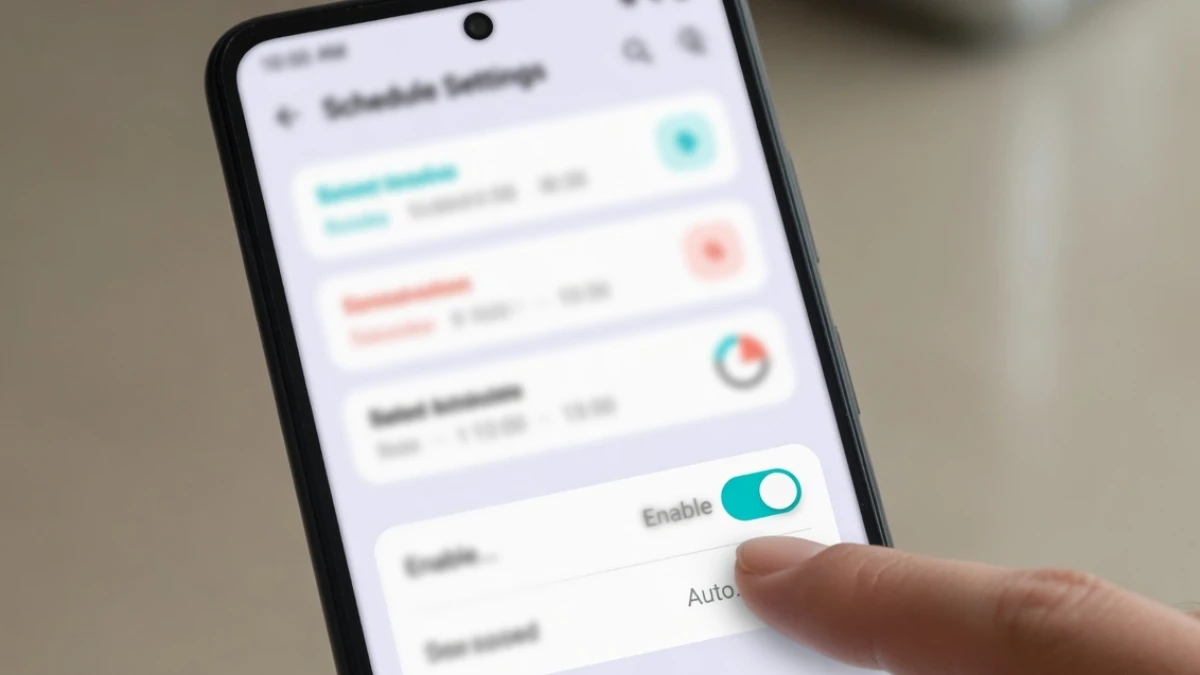
Inside the MyQ app:
- confirm the schedule is turned on (not paused)
- confirm the schedule is attached to the correct garage door device
- confirm the action is correct (open vs close)
- confirm the days and time are correct
It’s worth deleting and recreating the schedule once if anything looks odd.
Step 3: Check time zone and date/time settings
Schedules depend on time settings. If your phone or account time zone is wrong, schedules can run at the wrong time—or not at all.
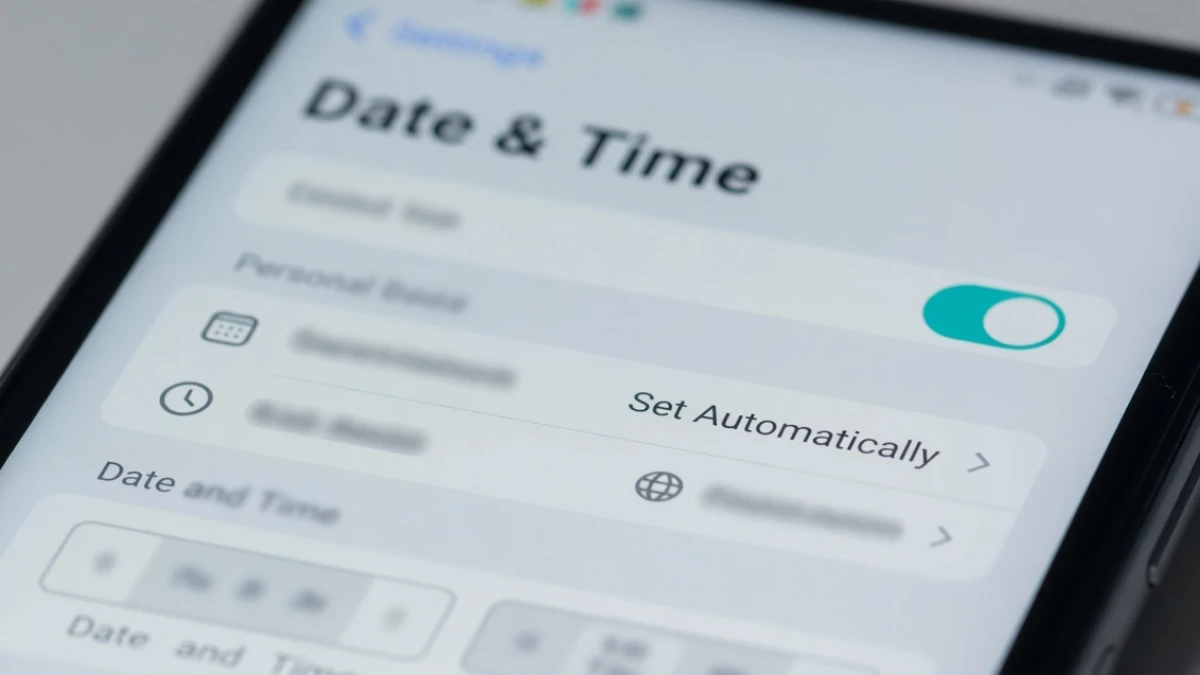
On your phone:
- set Date & Time to automatic
- confirm time zone is correct
If you recently traveled, changed phones, or changed router settings, time zone mismatches can happen.
Step 4: Turn off VPN / Private DNS / aggressive ad-blocking (can break automation)
If you use VPN or filtered DNS on your phone or network, it can interfere with how the app communicates and updates schedule status.
Temporarily disable VPN/Private DNS and see if schedules start working again. If they do, your network/privacy tools are the cause, and you may need to whitelist MyQ services.
(Your “MyQ works on mobile data but not on Wi‑Fi” post is a great internal link here.)
Step 5: Check notification and background restrictions (especially on Android)
While schedules are cloud-based, aggressive phone restrictions can still cause the app to behave inconsistently, especially if it needs to refresh, confirm, or update.
On iPhone:
- allow Background App Refresh for MyQ
On Android:
- remove battery optimization restrictions
- allow background data
You already have a “MyQ notifications not working” post that overlaps strongly with these permission steps.
Step 6: Update the MyQ app and reboot once
App updates often fix schedule bugs. Update MyQ, then restart your phone once. Also consider rebooting your router if your Wi‑Fi has been unstable.
Step 7: Test with a simple schedule (diagnosis trick)
If you want to confirm schedules work at all:
- create a schedule 10 minutes from now
- set it to “close” (safer than open)
- stand nearby and observe
If the test schedule runs, your old schedule settings were likely the issue. If it doesn’t run, you’re dealing with account/device/connection restrictions.
Step 8: Last step—sign out/in or reinstall the app
If schedules won’t run and nothing else helps, a clean session can fix weird account states.
- log out and log back in
- if needed, reinstall the app and set schedules again
If the app keeps logging you out, fix that first (you already have a “keeps logging out” post).
Important safety reminder about automated closing
If you use scheduled closing, make sure your safety sensors are working correctly. Never disable sensors, and do not rely on automation if the door behaves strangely (reversing, flashing lights, or refusing to close).
FAQs
Why didn’t my MyQ schedule run?
Most often the device was offline, the schedule was disabled/paused, time zone settings were wrong, or app/network restrictions interfered.
Do schedules work if the phone is off?
Usually yes, because schedules are cloud-based, but the device must stay online and the account must be functioning normally.
What’s the fastest fix?
Confirm online status, recreate the schedule, verify time zone, and remove VPN/DNS blocks temporarily.